DevTools
NubeSDK DevTools is a Chrome extension developed to improve the debugging and monitoring process of applications built with NubeSDK.
Install NubeSDK DevTools from the Chrome Web Store .
You can open Chrome DevTools on any web page by pressing F12 or Ctrl+Shift+I (Windows or Linux) and Fn+F12 or Cmd+Option+I (Mac).
Once browser DevTools is open and NubeSDK DevTools is installed, you can find it under the "NubeSDK" tab.
Open your application
When you open the extension, you'll see some additional sections.
| Sections | Details |
|---|---|
| Apps | Displays a detailed list of apps built using NubeSDK, providing information about their current state and ongoing activities. |
| Components | Provides a comprehensive view of all Components and their available slots, allowing developers to inspect and manage component configurations. |
| Events | Shows all events exchanged between the apps and the main page, making it easier to track communications and identify specific actions. |
| Storage | Logs interactions with storage mechanisms localStorage and sessionStorage, enabling the monitoring of data changes and access events. |
| SVG Converter | A tool that assists in converting SVG code to the format accepted by NubeSDK, automatically generating JSX components from SVG markup. |
| State | Displays the consolidated and updated state of NubeSDK, providing a comprehensive view of all current application data including cart, customer, location, store, and UI state. |
| Local Mode | Connect a locally running NubeSDK app to any store for debugging — no Partner Portal configuration required. |
Apps
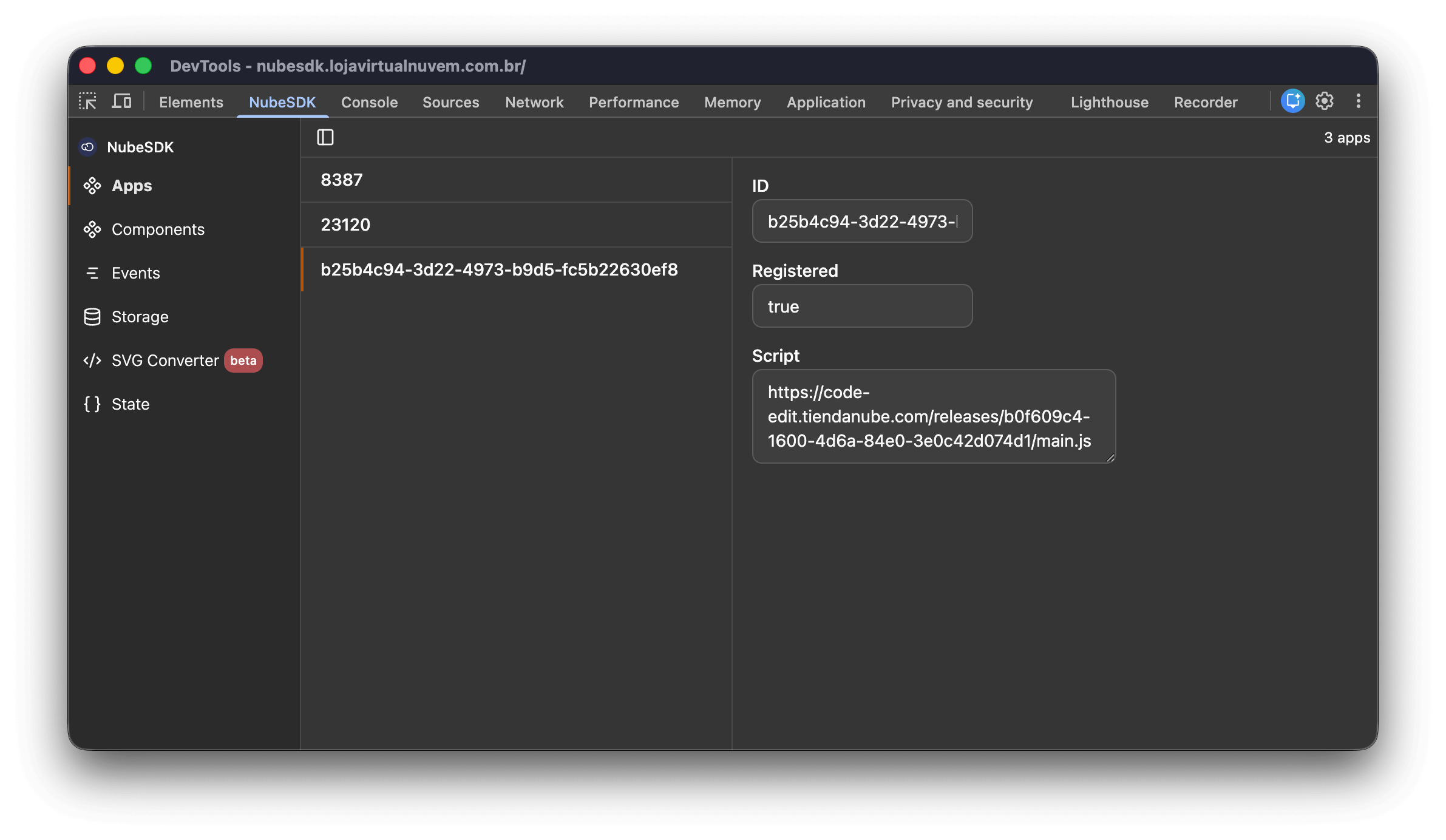
This section displays a detailed list of apps built using NubeSDK. The list also indicates whether an app is running in dev mode.
When you click on an individual app in the Apps section, you will see additional details about that app:
- ID: A unique identifier for the specific app instance.
- Registered: Indicates whether the app has been successfully registered.
- Script: Displays the script that is running for the app.
For more details on how to run your app locally and explore these features, see the Run your app locally section.
Components
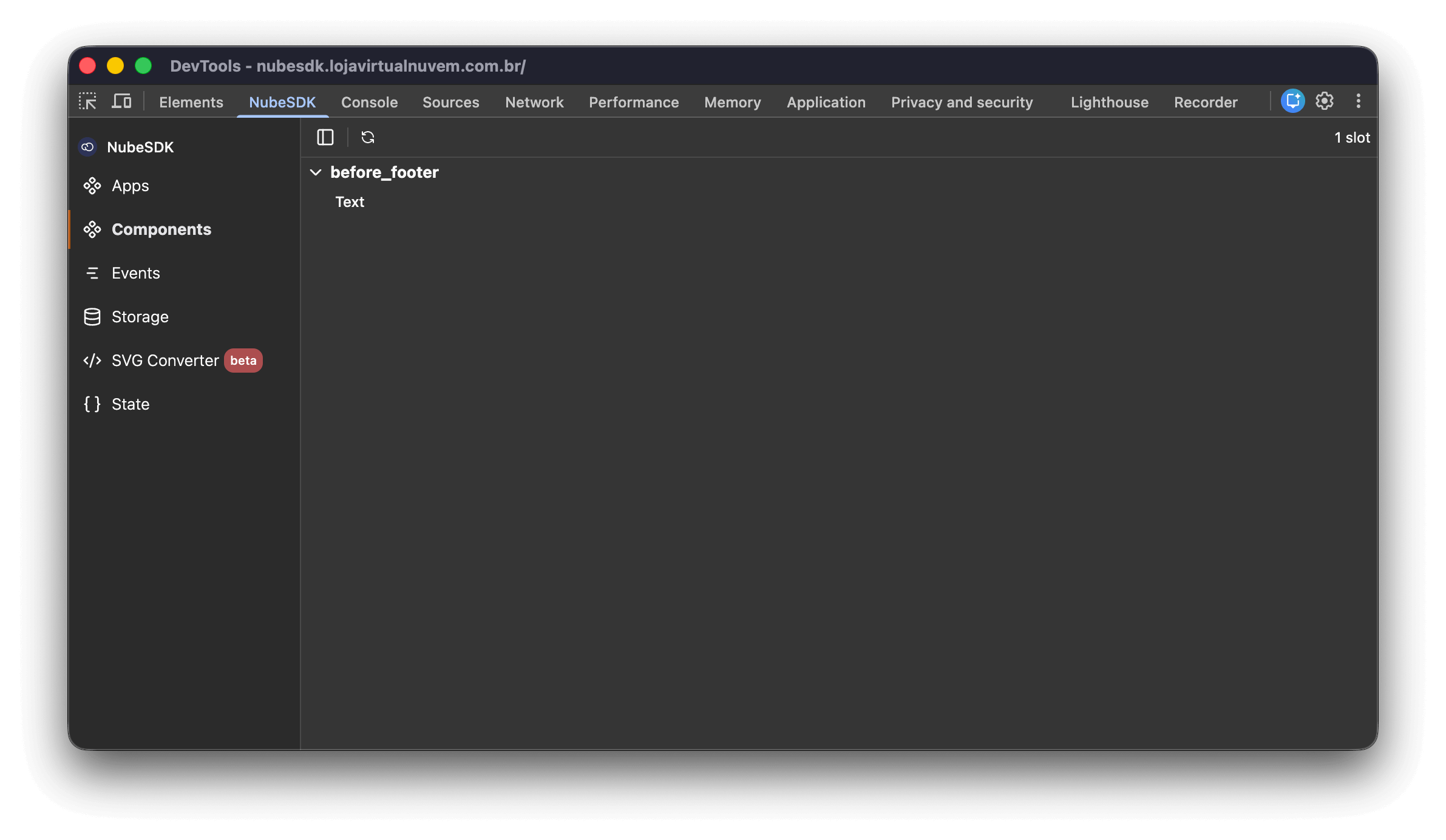
This section provides a comprehensive view of all components rendered by NubeSDK apps, grouped by app and organized by their location in the interface (slots). This makes it easier to understand how each app builds its UI and where each element is positioned.
For each component, you can:
- Inspect its structure: View the component tree and nested elements.
- See the component type: Like Box, Button, Text, Field, and others.
- Explore slots: See which components are rendered in which predefined UI slots like
before_main_contentorafter_line_items.
Events
This section logs and displays all events exchanged between the apps and the main page in real time. It helps developers monitor the sequence of events, understand how the apps interact with the NubeSDK, and diagnose issues by inspecting state transitions as they occur.
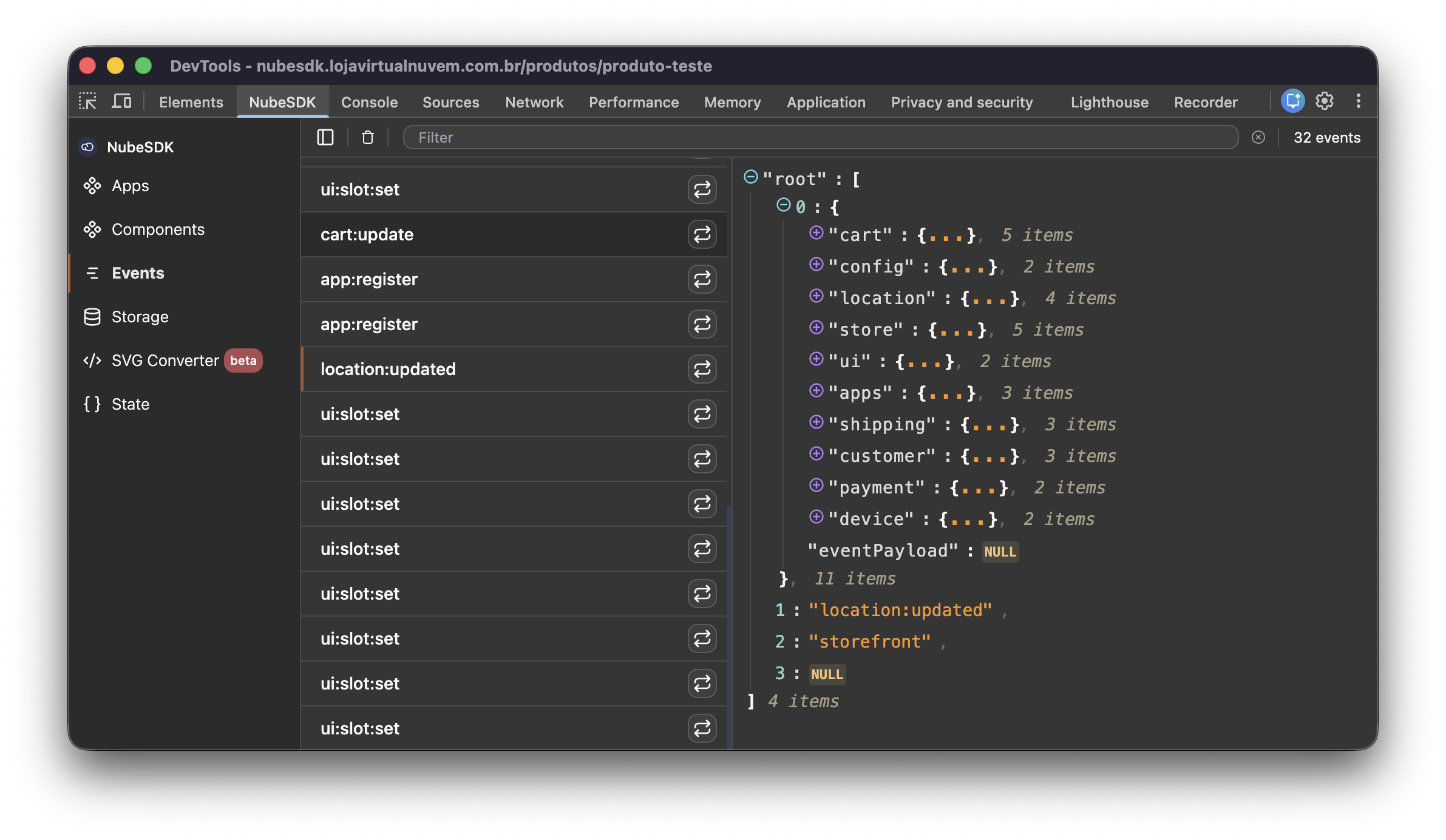
In the events screen, you can see the name of each event. When you click on an individual event, the detailed view reveals the state of the NubeSDK at that moment.
Storage
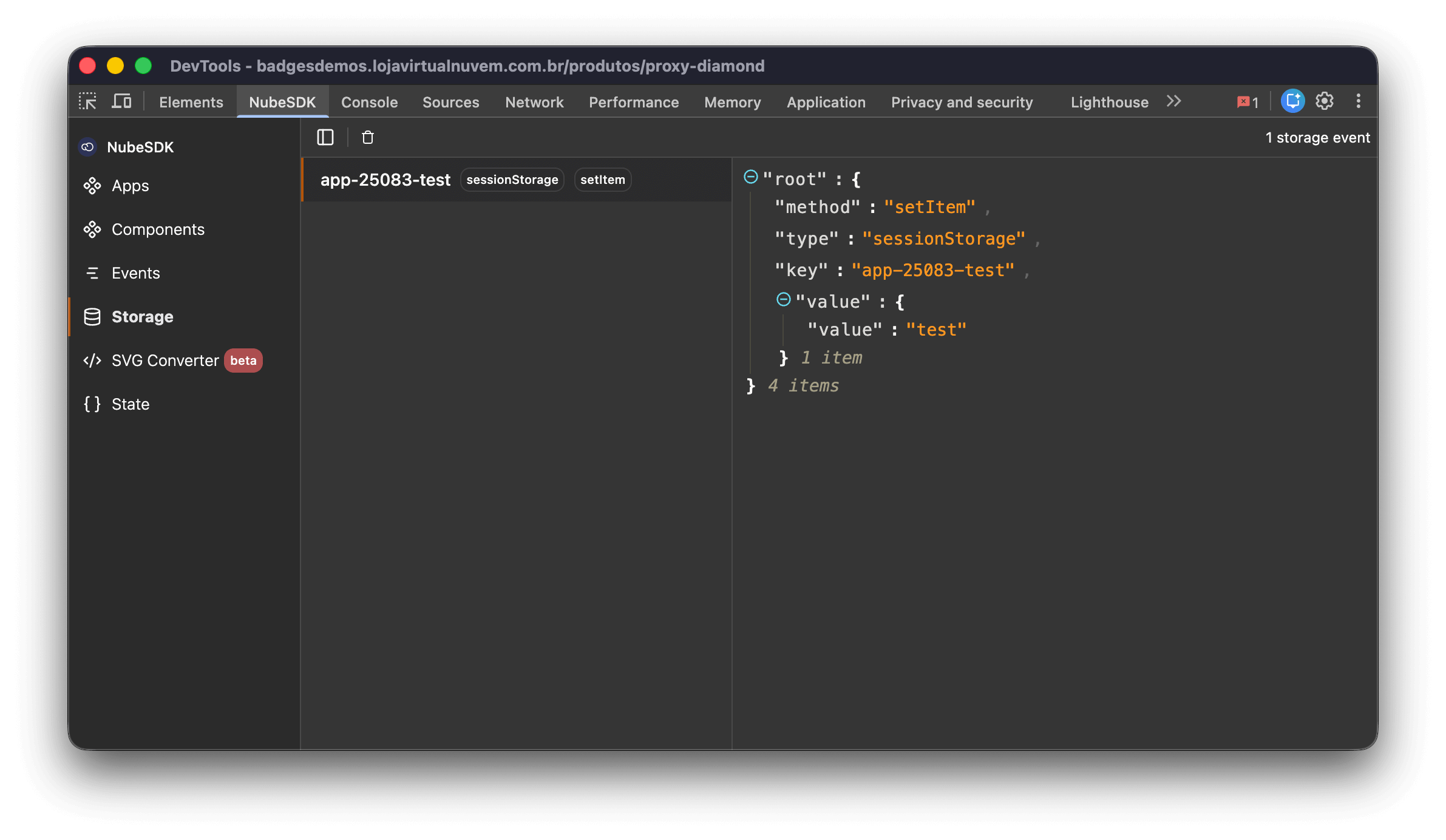
This section displays a list of all storage events occurring in real-time, capturing interactions with both localStorage and sessionStorage. When you select an individual storage event, you'll see detailed information, including the method, key, and value associated with the event.
For more information on how to access the browser APIs for localStorage and sessionStorage, please refer to the Browser APIs documentation.
SVG Converter
This section provides a tool that automatically converts SVG code to NubeSDK JSX components. The SVG Converter makes it easy to integrate existing SVG graphics into your NubeSDK application by transforming standard SVG markup into the component format required by NubeSDK.
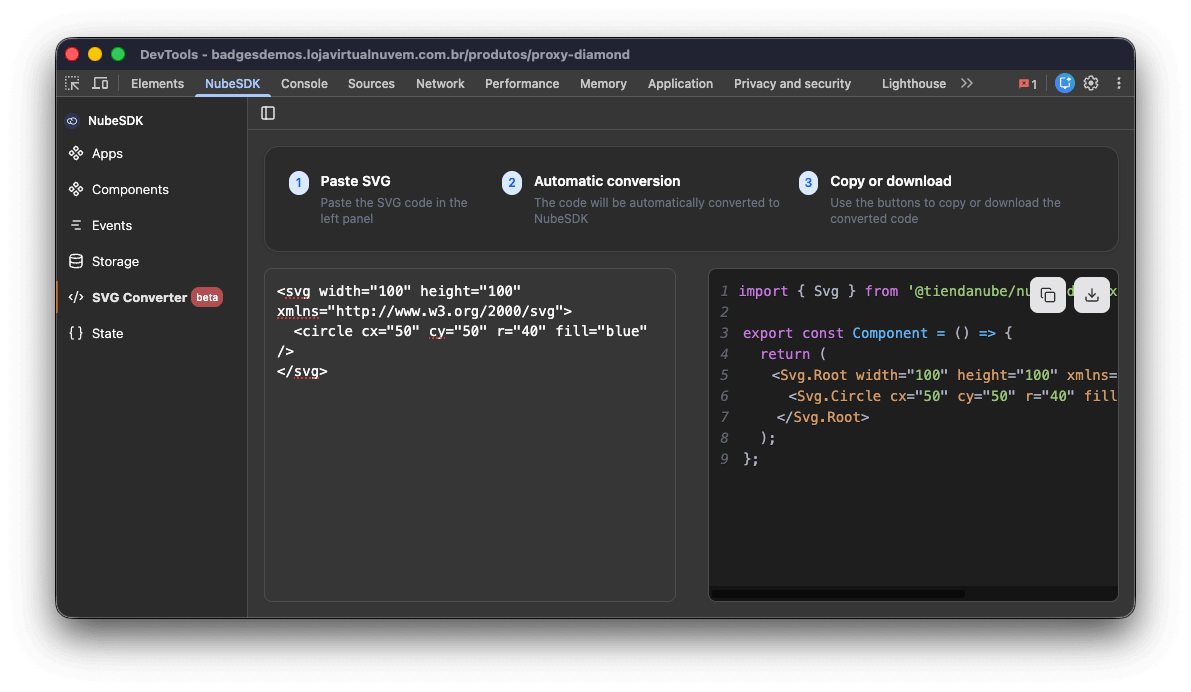
To use the SVG Converter:
- Paste your SVG code into the input area. You can paste SVG markup from any source, including files, design tools, or online resources.
- Click Convert to transform the SVG into NubeSDK JSX components.
- Copy the generated code and use it directly in your NubeSDK application.
The converter automatically transforms SVG elements into their corresponding NubeSDK components:
<svg>becomes<Svg.Root><circle>becomes<Svg.Circle><text>becomes<Svg.Text><rect>becomes<Svg.Rect><path>becomes<Svg.Path>- And other common SVG elements
For more information about using SVG components in your application, see the SVG component documentation .
State
This section displays the consolidated and updated state of NubeSDK in real-time. The State view provides a comprehensive overview of all current application data, allowing developers to inspect the complete state object that includes cart information, customer data, location details, store configuration, UI components, and more.
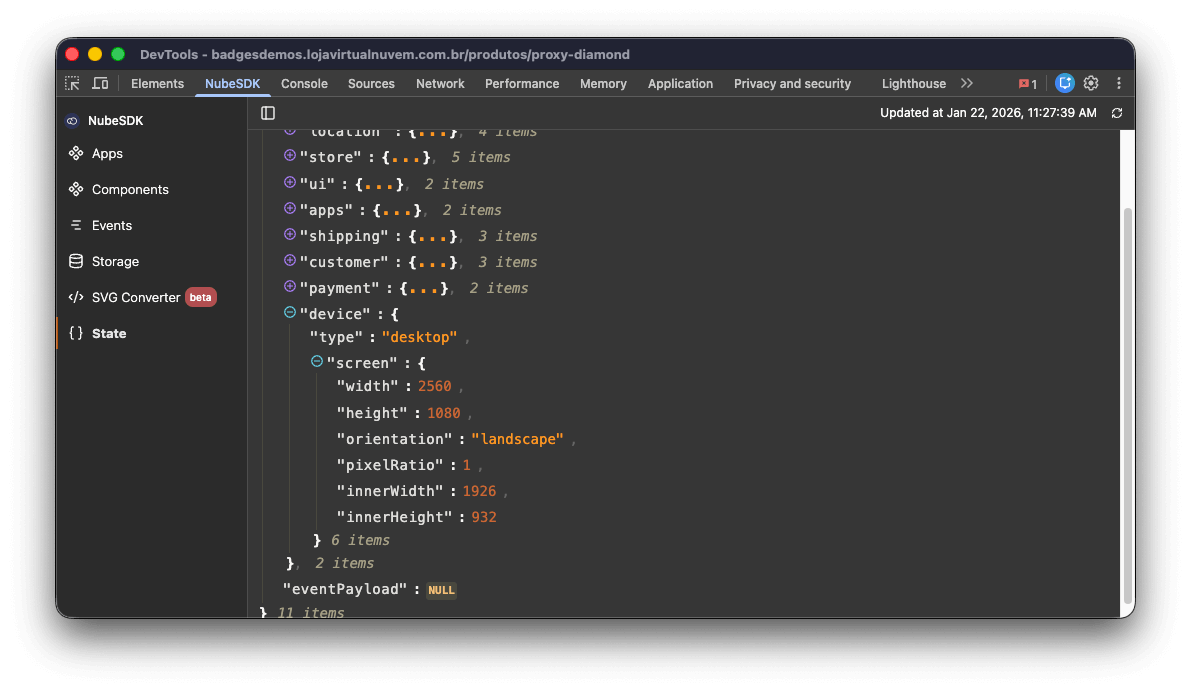
The State section shows the current NubeSDKState object, which includes:
- Cart: Current cart contents, prices, validation status, and shipping information
- Customer: Customer details, address, and authentication status
- Location: Current page type, URL, and page-specific data
- Store: Store information including ID, name, domain, currency, and language
- Device: Device type, screen dimensions, and orientation
- UI: Dynamically injected components in slots and their associated values
- Config: Application-wide configuration settings
- Order: Order status and tracking information (available on checkout success page)
- Shipping: Available shipping options and selected shipping method
This view is particularly useful for debugging, as it allows you to see the exact state at any given moment and understand how different parts of your application interact with the NubeSDK state.
For more information about the state structure and how to access it in your application, see the State documentation .
Local Mode
Local Mode lets you connect a NubeSDK app running on your local machine directly to any store — without having to configure the development URL in the Partner Portal. This is useful for quickly testing changes, debugging on different stores, or getting started with development before your Partner Portal setup is complete.
You can access Local Mode from two places:
- DevTools panel — Open Chrome DevTools on any store page, go to the NubeSDK tab, and click Local Mode in the sidebar.
- Extension popup — Click the NubeSDK DevTools extension icon in the Chrome toolbar.
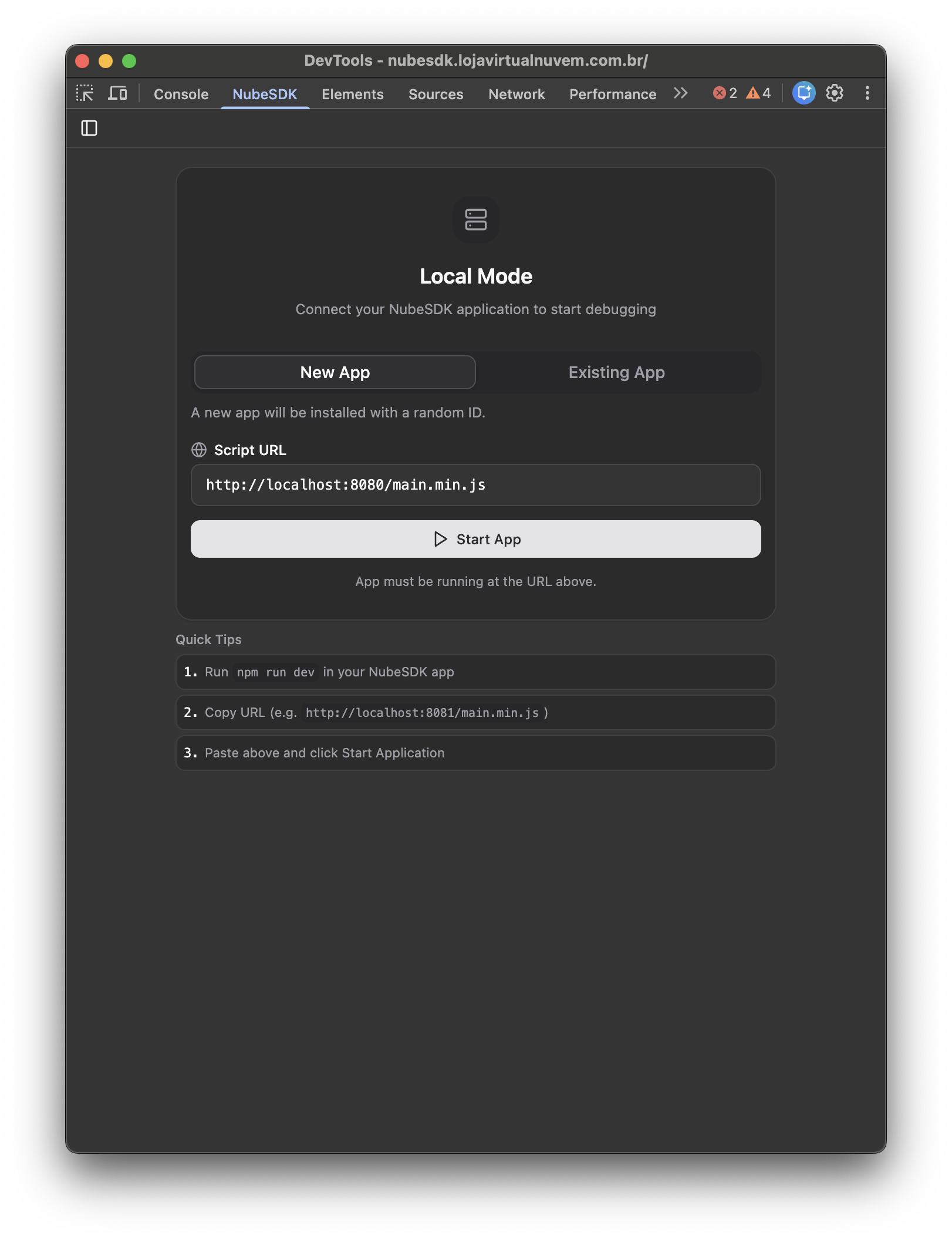
Connecting your app
Local Mode offers two options via tabs:
| Tab | Use case |
|---|---|
| New App | Creates a new app instance with a random ID. Use this when you want to test your app as a fresh installation. |
| Existing App | Replaces the script of an app already installed on the store. Use this to debug or develop an app that is already registered in the Partner Portal. |
To connect your app:
- Start your local development server (e.g.
npm run dev). - Open Local Mode in the DevTools panel or extension popup.
- Choose New App or Existing App. If using Existing App, select the app from the dropdown.
- Paste your script URL (e.g.
http://localhost:8080/main.min.js) in the Script URL field. - Click Start App.
The extension will store the connection configuration, reload the page, and start polling your script URL. You'll see a status indicator showing whether the script is reachable:
- Checking — The extension is verifying if the script URL responds.
- Script is available — Your local server is running and the script was loaded successfully.
- Script is not available — The script URL is not reachable. Make sure your dev server is running.
If your dev server is running but the script is still not available, Chrome may be blocking the store page from accessing localhost. Click the lock (or tune) icon in the address bar, go to Site settings, and make sure Apps on device is toggled on. Then reload the page.
When connected, the extension badge shows a green indicator, and apps loaded via Local Mode are labeled with a "Local Mode" badge in the Apps section.
Stopping the connection
Click Stop App to disconnect. This clears the connection configuration, reloads the page, and restores the store to its original state.
Local Mode persists your last used script URL, so you don't have to re-enter it every time you open the extension.
Help us improve NubeSDK
Found an issue or have a suggestion? Let us know on GitHub.